
How to Add Shoppable Videos to Shopify
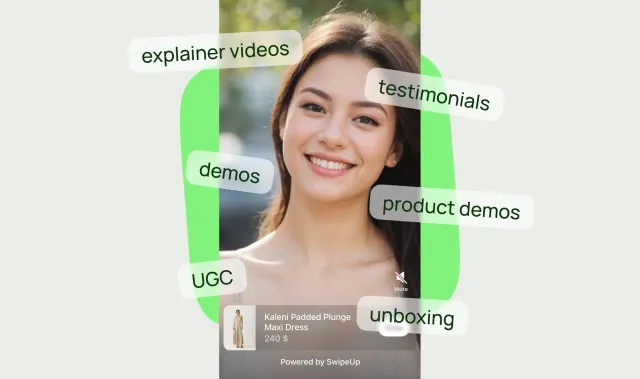
Shoppable videos on Shopify connect a product demonstration to a product a shopper can buy. For your first placement, choose one product page and one question the video should answer: how an item fits, how it works, or what arrives in the box.
This guide covers a SwipeUp feed on your Online Store. It also explains when Shopify’s built-in product media is enough. The screenshots come from the SwipeUp help center; your theme and current app interface may look different.
Choose native product media or a shoppable feed
If you want a video alongside the product’s photos, start with the native gallery. In Shopify admin, open Products, select a product, and use Media → Upload new or Select existing. Your theme must support video. See Shopify’s product media instructions.
Choose a shoppable feed when you need a separate Stories or Feed placement with products attached to the clips. SwipeUp also offers an Overlay format. Check plan features and view limits before choosing placement controls. An app is useful when those controls solve a specific merchandising problem; a simple gallery video does not automatically need one.
For the difference between storefront video and other shopping channels, read what shoppable video means on Shopify.
Still choosing an app? Our SwipeUp vs Tolstoy comparison covers documented placements, published pricing and a small pilot checklist.
1. Prepare the first clips
Start with a small set that answers different questions. For a bag, you could show its capacity, how it sits on a person, and how its compartments open. This is an example shot list, not a claim about an existing customer.
Make the product identifiable in the opening frame. Add readable captions and keep essential details away from the edges where player controls may cover them. Test the clip without sound. A vertical video fits a Stories layout; the important check is whether the subject remains visible in the chosen widget.
Before uploading customer or creator footage, record permission to use it on your storefront. Our UGC collection and approval checklist explains what to keep with each asset.
2. Create a feed in SwipeUp
Install SwipeUp, open the app, and select Create Feed. Give the feed a name that includes its purpose, such as “Travel bag product demo.” Select Add Reel, name the reel, and upload your video.
Use one clearly named feed for the first placement. That makes it easier to find the right content in the theme editor and to remove or change the test later. The full feed setup walkthrough includes screenshots for each screen.
3. Attach the correct product
Use the reel’s product picker to select the item shown in the video. Check that the clip and destination agree: the shopper should not see one design in the footage and a different product after tapping.
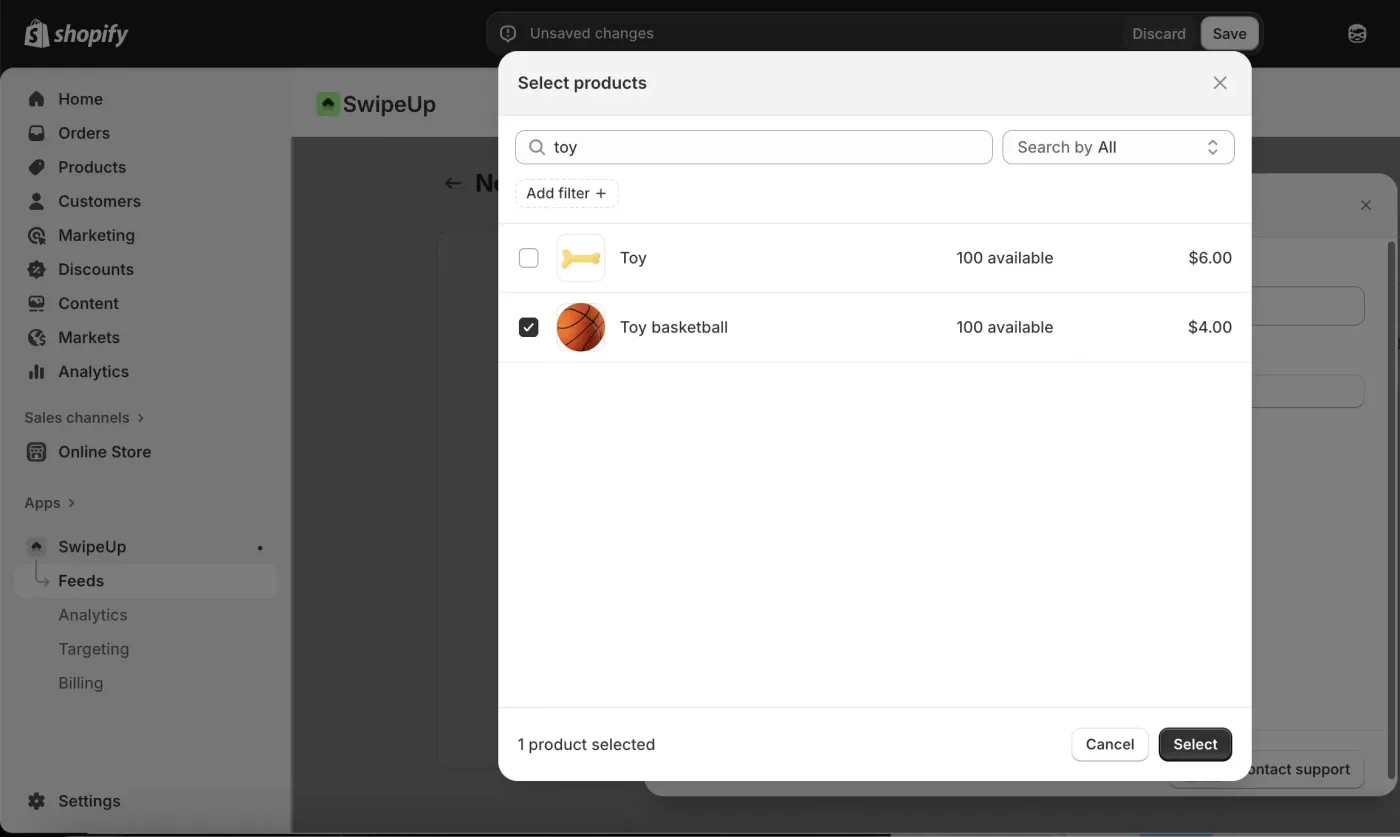
Preview the result. Test the product panel, available options, and add-to-cart flow. Include an unavailable product or variant in your checks if that situation is common in your catalog.
4. Add the feed to a product template
Select Add to Store, then choose a widget format. In Shopify’s theme editor, open the intended product template and add the SwipeUp section. For Stories, select Stories Feed, then choose your feed in the section settings. Follow the product page Stories guide for the illustrated sequence.
Check which products use that template. A change to a shared template can affect several product pages. Preview another product assigned to it so you do not accidentally display an unrelated demonstration.
5. Check placement before saving
Keep the product title, price, variant selector and purchase button easy to reach. Try a feed near the information it explains. A sizing demonstration belongs near fit information; an assembly clip may work farther down the page.
On a narrow phone screen, check that the widget does not cover the cart, cookie controls or support chat. Open and close the player, rotate the screen, and navigate with a keyboard. Confirm that captions and controls remain readable. Then save the theme changes and check the actual storefront outside the editor.
6. Measure the rollout
Record the page URL, template, feed name, clips and publication date. Compare mobile loading and layout stability before and after the change using the same page and test conditions. Video, your theme and other apps can all affect the result.
Use SwipeUp analytics to inspect engagement. Keep video-associated orders separate from proof of incremental sales: shoppers who choose to watch can already be more interested. Our seven shoppable video tests show how to set a useful hypothesis and avoid reading too much into a small sample.
Common setup questions
Do I need an app to add any video to Shopify?
No. Shopify supports video in product media. A shoppable video app adds its own feed, player and product-tagging workflow. Choose the workflow that matches the placement you need.
Why is my feed missing from the product page?
Check the saved theme, product template assignment, selected feed and widget settings. Confirm you are viewing the published theme rather than only an editor preview. If the feed still does not appear, use the help center with the page URL and feed name.
Should videos autoplay?
Start by checking the mobile experience with deliberate playback. If you enable autoplay, verify mute behavior, loading cost and whether motion distracts from buying. There is no single setting that is best for every theme and placement.
Let shoppers see your products in action
Add product demos and customer videos to your Shopify store. Start free or try a paid plan for 14 days.
Start free