Creating a Video Feed
How to Create a Video Feed
Follow these steps to create a video feed, add shoppable videos, and publish it on your Shopify store.
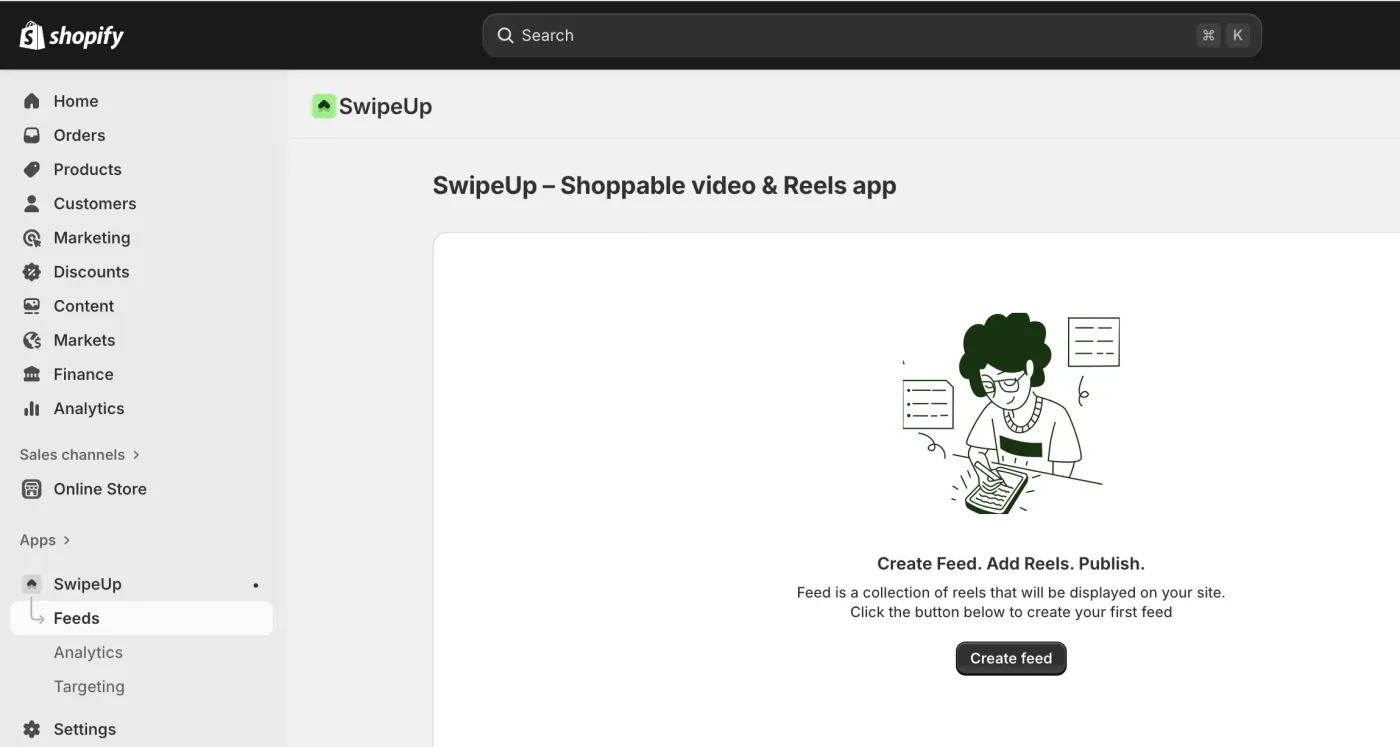
Step 1: Create a New Feed
Open the SwipeUp app and click the Create Feed button.
Step 2: Name Your Feed
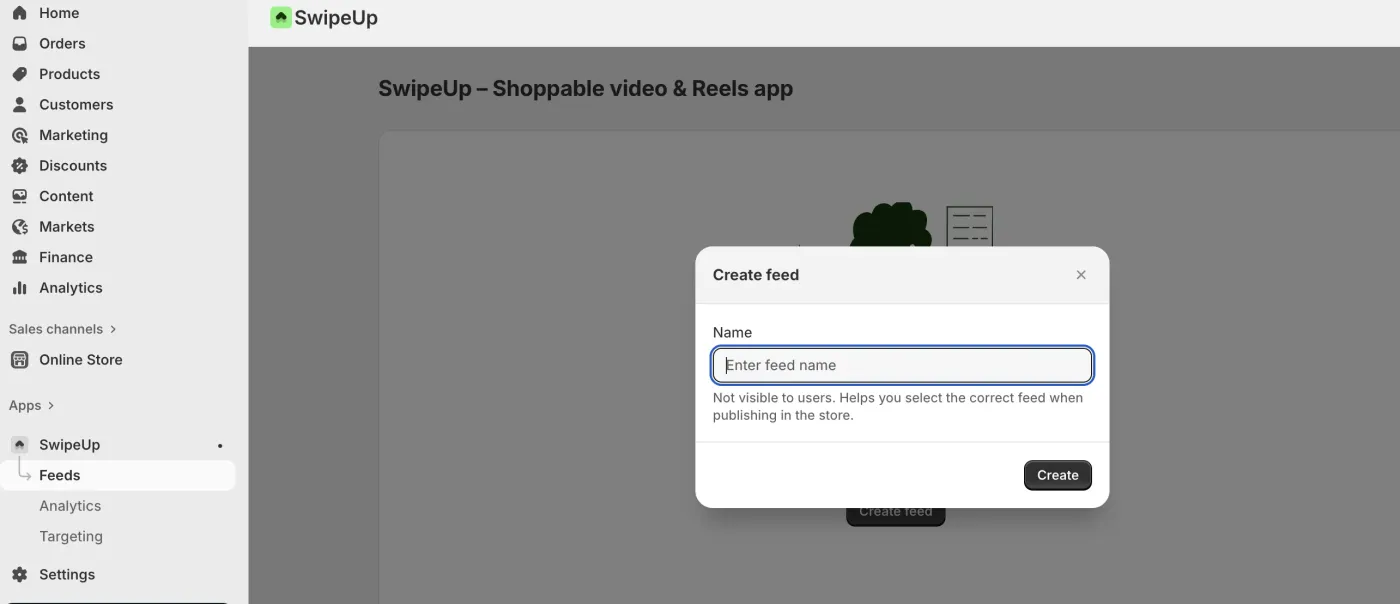
Enter a name for your feed. Use a descriptive name that helps you identify the feed later, such as “Homepage Carousel” or “Summer Collection.”
Step 3: Add a Reel
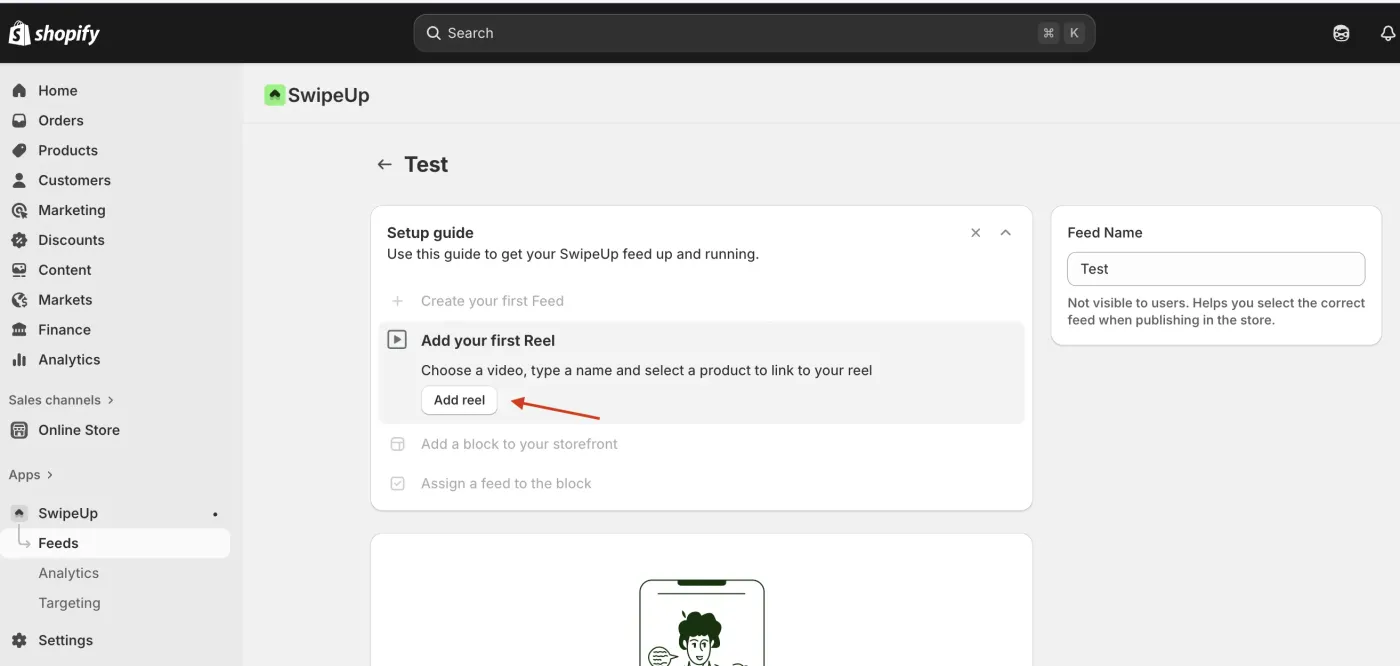
Click Add Reel to start adding video content to your feed.
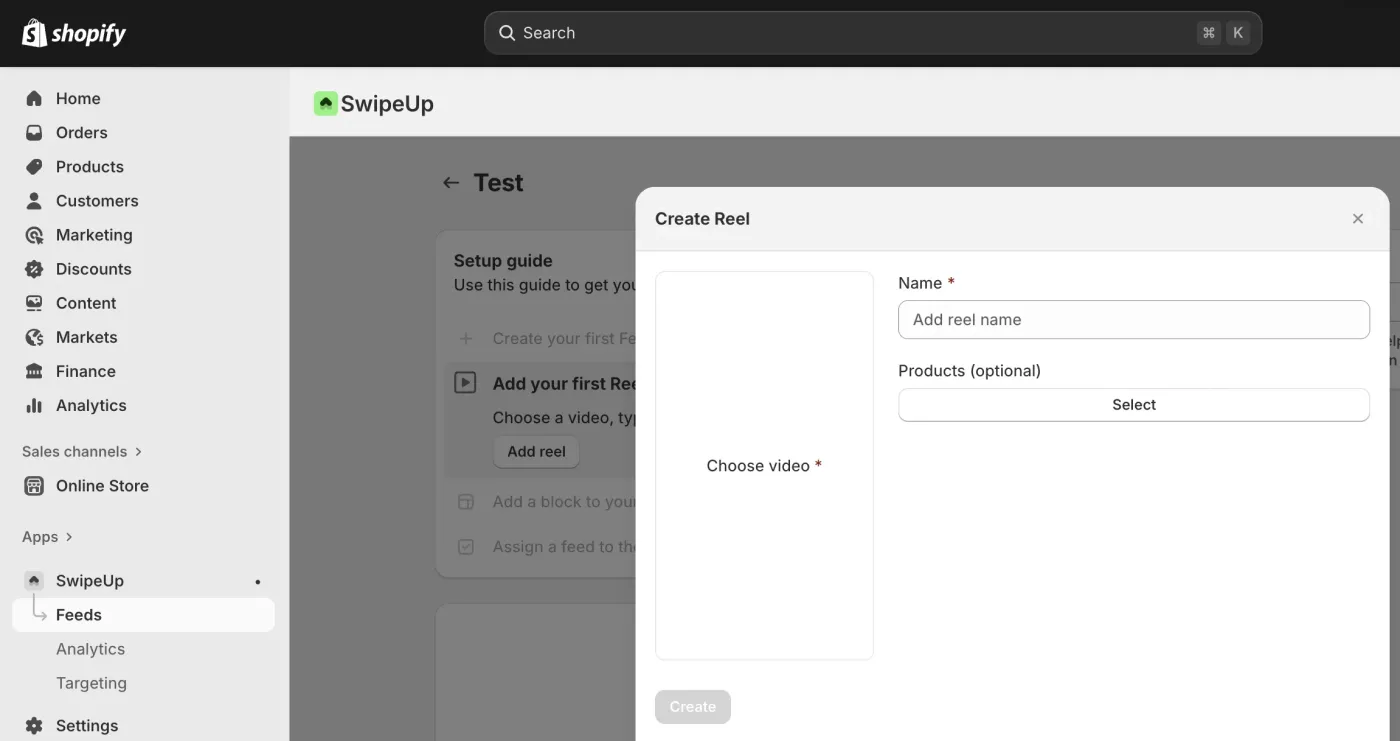
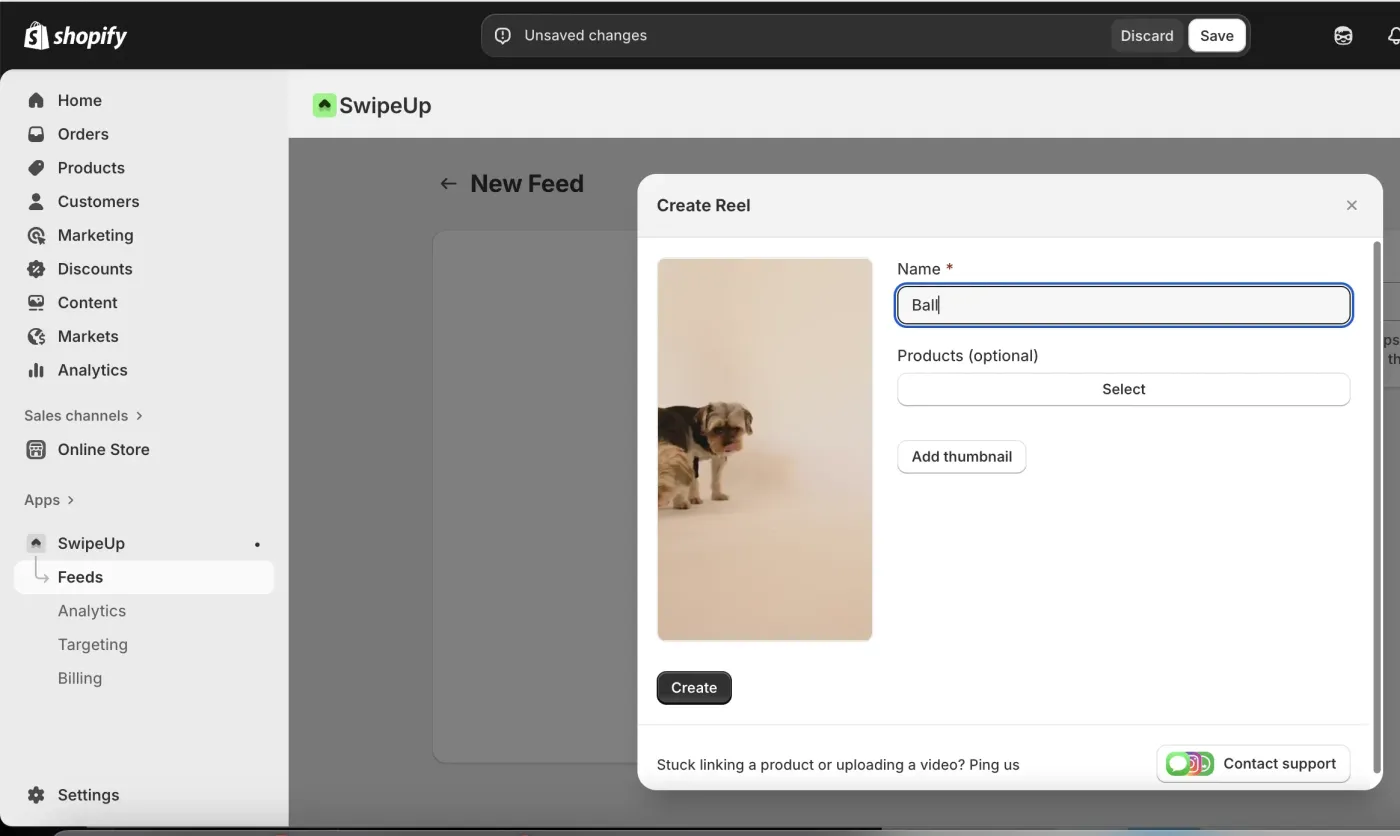
Step 4: Upload Your Video
Give your reel a name and upload a video file. Videos should be vertical (9:16 aspect ratio) for the best viewing experience.
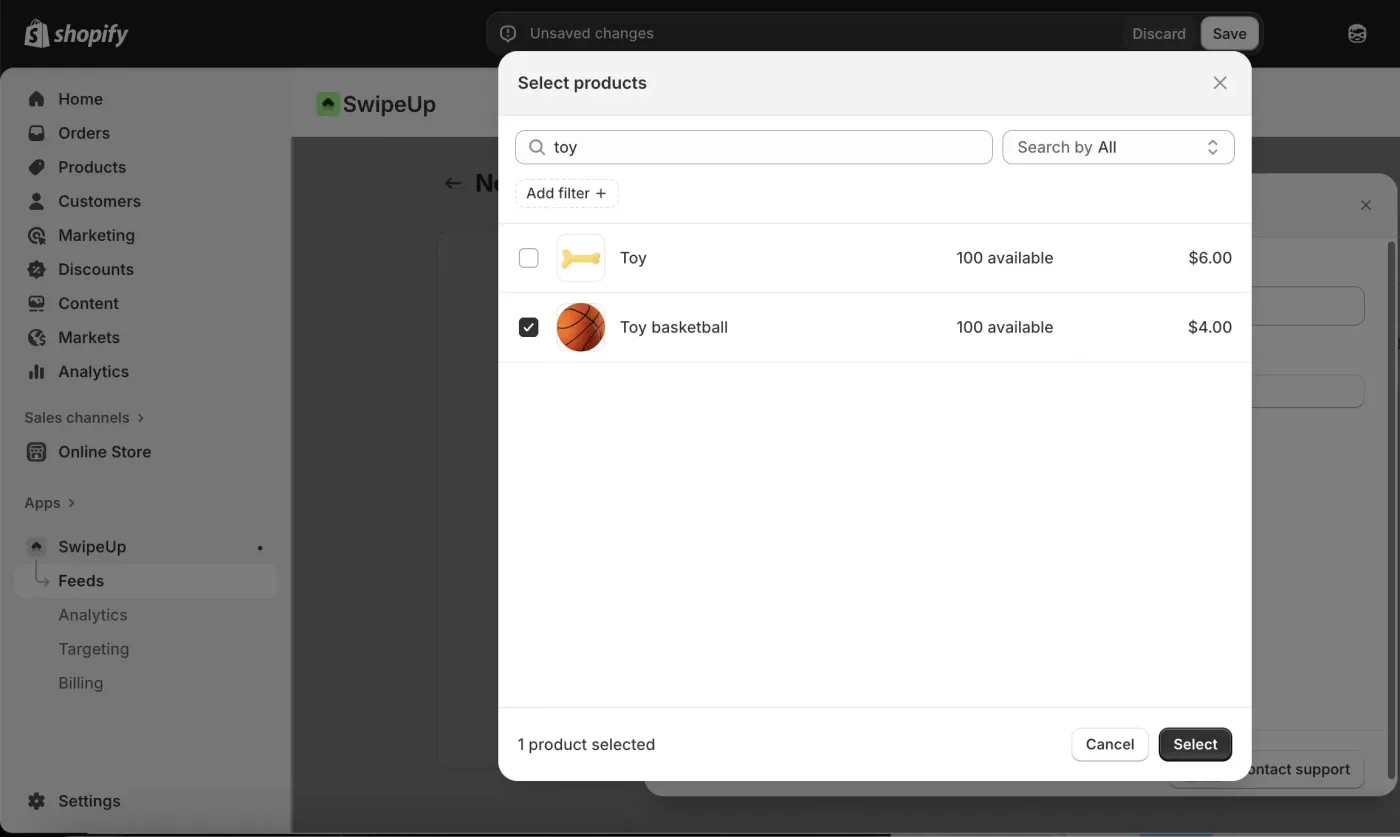
Step 5: Add a Product
Tag a product from your Shopify catalog to make the video shoppable. Customers will be able to view and purchase the product directly from the video.
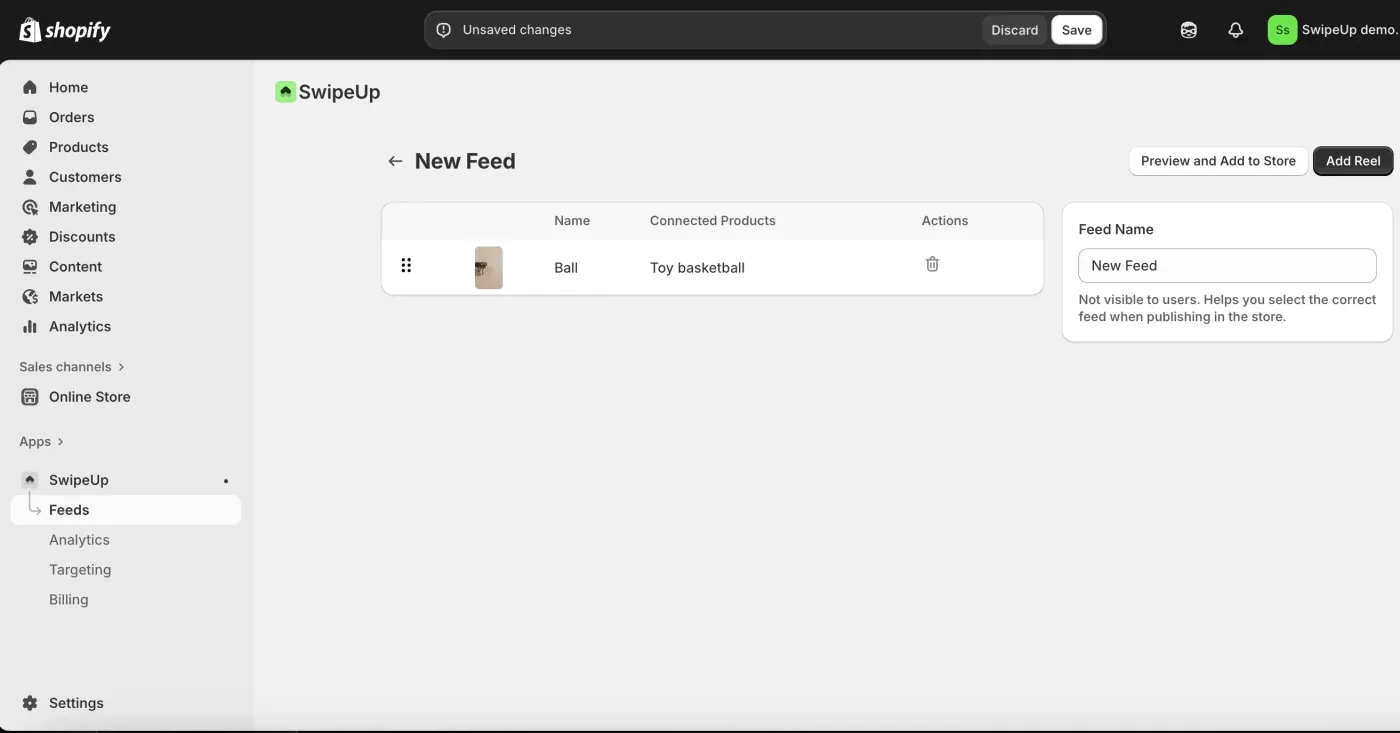
Step 6: Preview and Add to Store
Review your feed in the feed list. When ready, click Add to Store to begin the publishing process.
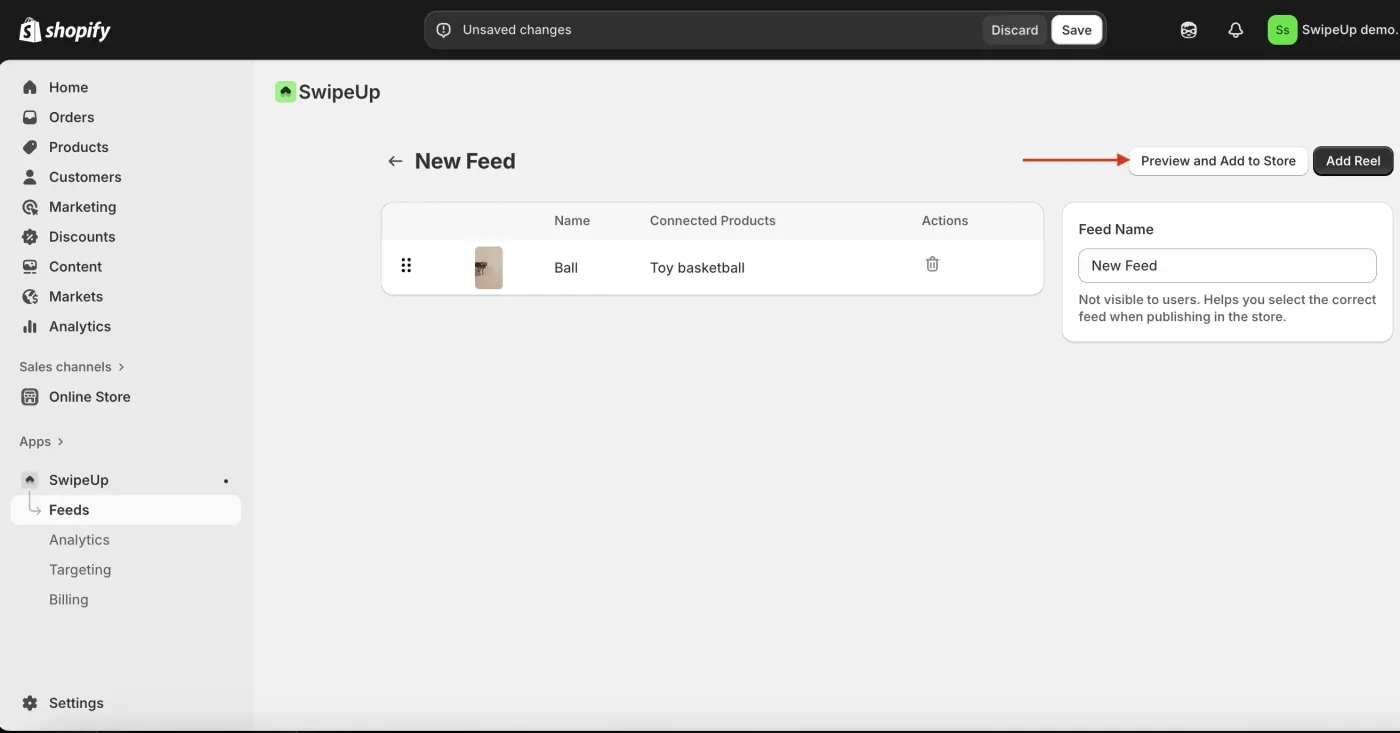
Step 7: Choose a Widget Type
Select the widget format for displaying your feed. Available options include carousel, grid, stories, floating bubble, and more.
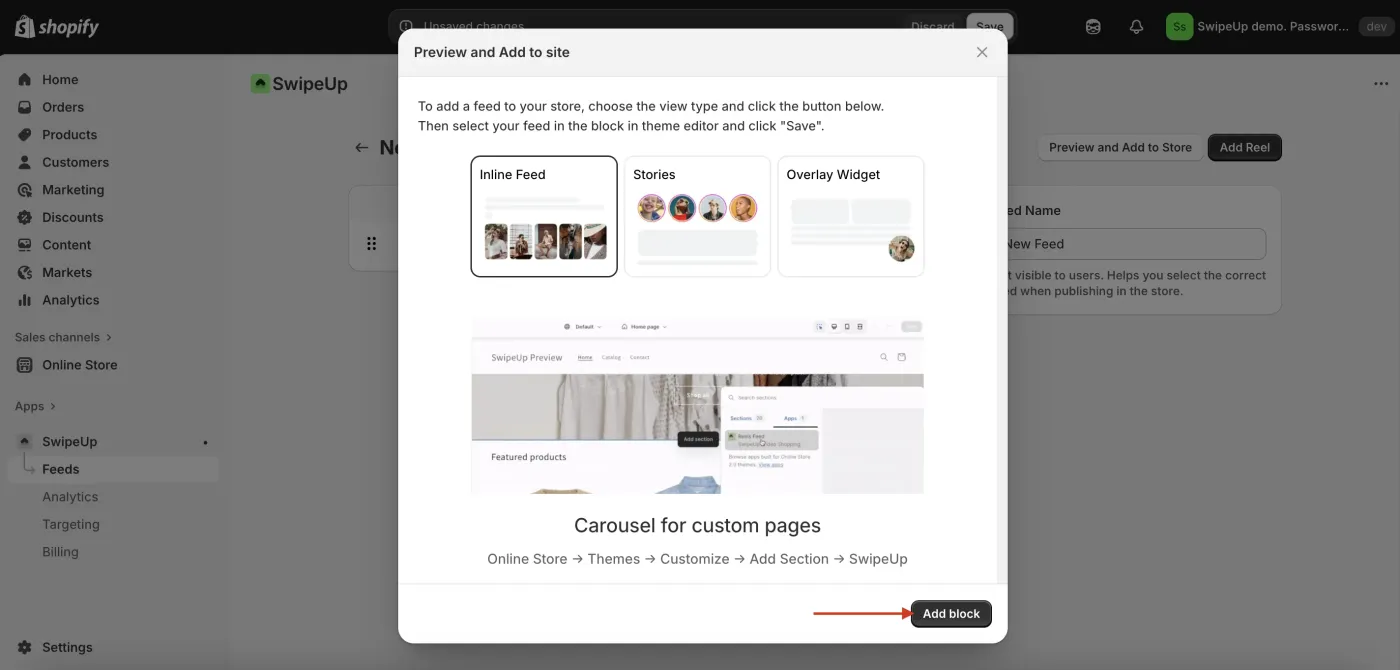
Step 8: Configure in the Theme Editor
Open your Shopify Theme Editor and add or select the SwipeUp section. Choose the feed you want to display from the dropdown.
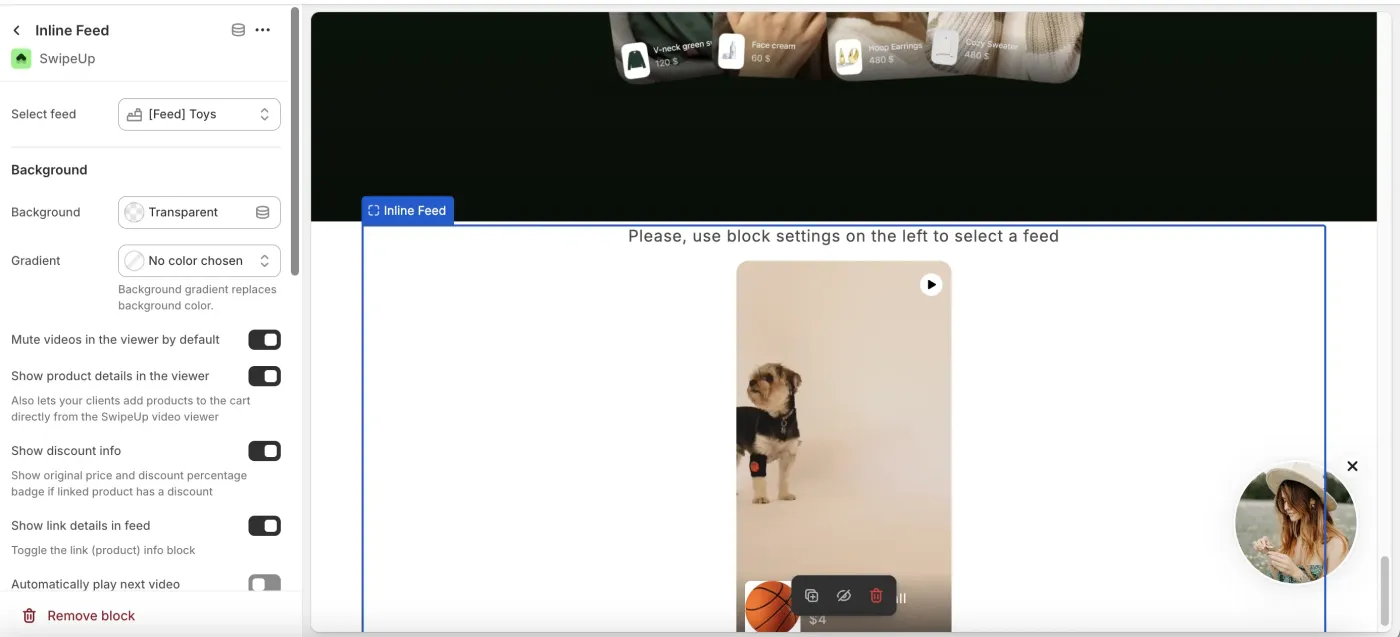
Step 9: Adjust Settings
Fine-tune the player settings such as autoplay, mute behavior, thumbnail style, and layout to match your store design.
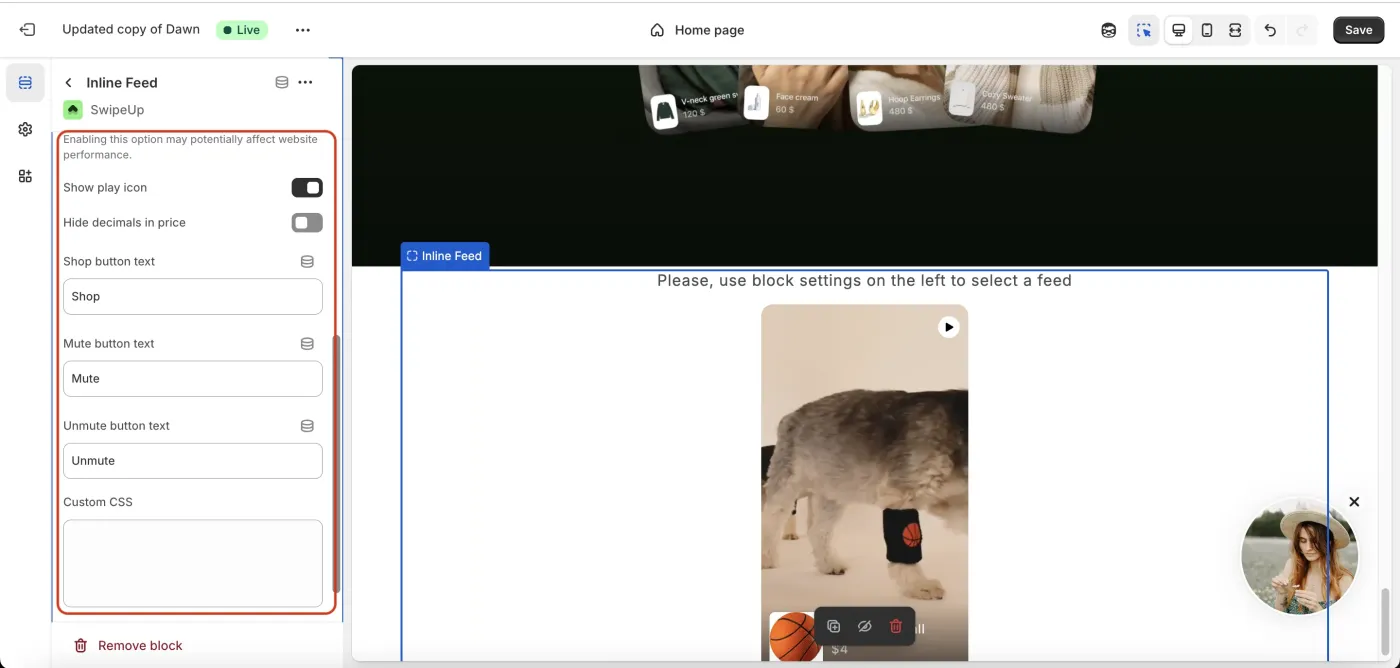
Step 10: Save and Publish
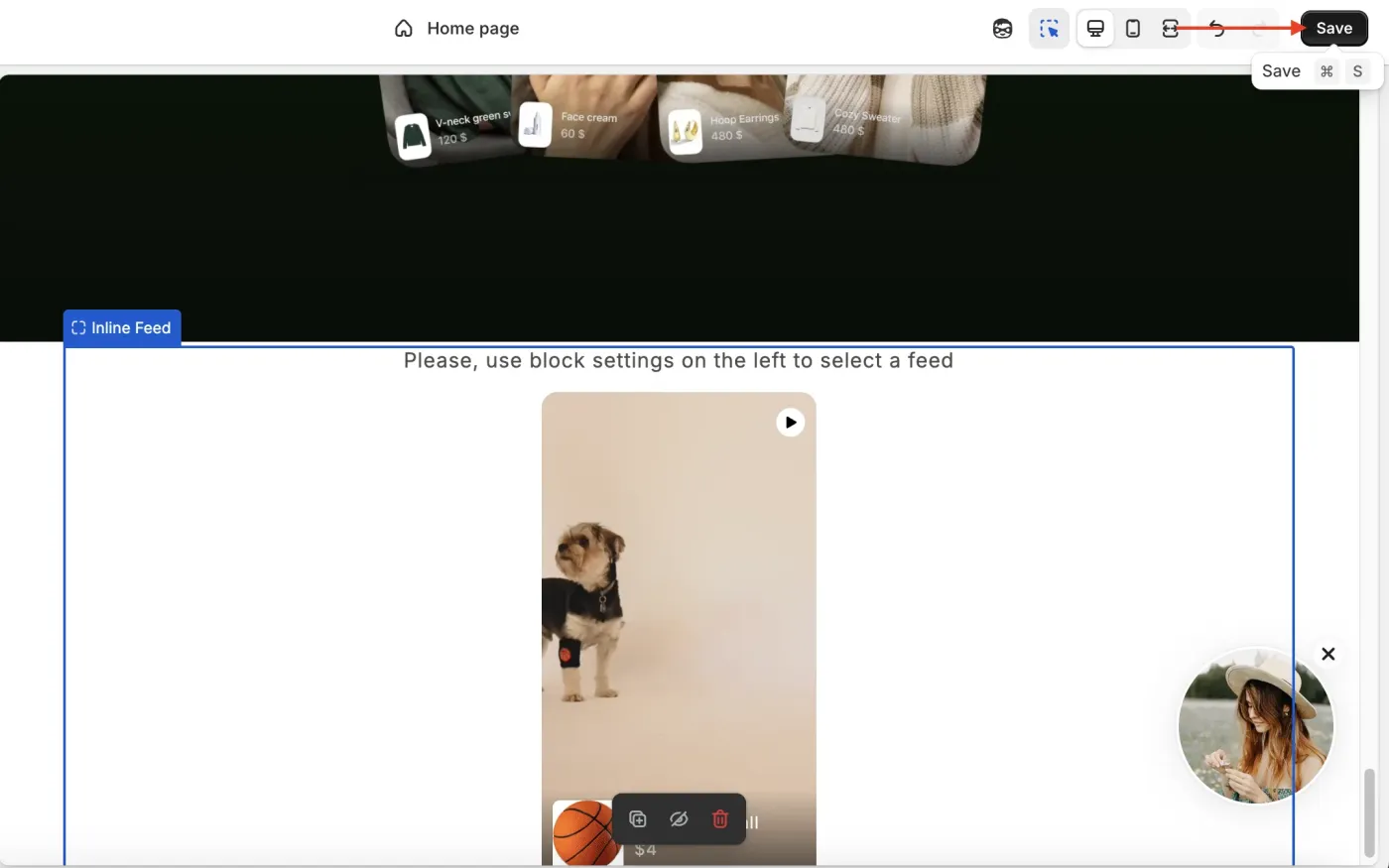
Click Save in the Theme Editor. Your video feed is now live on your store.