Arlo & Co: shoppable video for personalised gifts
Updated
This walkthrough uses the saved storefront screenshots below to explain product presentation and video placement.

What the storefront shows
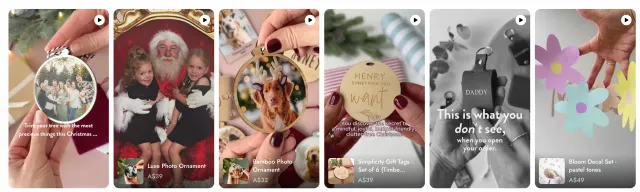
Arlo & Co’s saved storefront images show personalised gifts, including wooden keepsakes, ornaments and name tags. The video feed presents a row of vertical clips with product cards underneath. Shoppers can connect a video to the named item and its displayed price without having to identify the product from the footage alone.
This is a useful pattern for gifts that depend on small details. A still product image can show the design; a short clip can add context such as how an ornament hangs or how large a tag looks in someone’s hand.
Keep the clip and product together
The connection between each clip and its product is the most useful detail in this example. A general brand video may create interest, but a product-specific card gives the viewer a clear next step.
When adapting this approach, check that the tagged product matches what is shown. For personalised items, make clear which parts are customisable and which are fixed. Keep production times, delivery information and personalisation instructions available as text on the product page.
Add products to a SwipeUp video explains how to make that connection. If a clip includes several items, use the multiple-product tagging guide.
Plan a small gifting feed
Start with a few clips that answer different questions rather than several versions of the same reveal:
- A close-up of the finished personalisation.
- A view that makes the item’s scale clear.
- A demonstration of the gift in its intended setting.
- A packaging or unboxing clip, if it accurately reflects the order a customer receives.
These are suggested content ideas for another store. The screenshots establish the visual arrangement of Arlo & Co’s feed; they do not show the full production process behind its clips.
Measure the placement
For your own test, record the products, placement and dates before adding the feed. Compare video interaction with product visits and orders, and note changes to promotions or traffic sources.
A conversion rate among people who chose to watch a video can differ from the rate across all visitors even without an effect from the video. Those audiences are self-selected. Use a controlled comparison if you want to estimate incremental sales, and report the numerator, denominator and time window alongside any percentage.
The shoppable video testing guide includes a repeatable way to document the change and its results.


Let shoppers see your products in action
Add product demos and customer videos to your Shopify store. Start free or try a paid plan for 14 days.
Start 14-day trial