
How to Tag Multiple Products in SwipeUp
Tagging Multiple Products to a Video
You can tag more than one product to a single video in SwipeUp, allowing customers to browse and shop multiple items from a single reel.
Step 1: Open Your Feed
Open the SwipeUp app and navigate to the feed containing the video you want to edit.
Step 2: Select the Video
Click on the video (reel) you want to add products to.
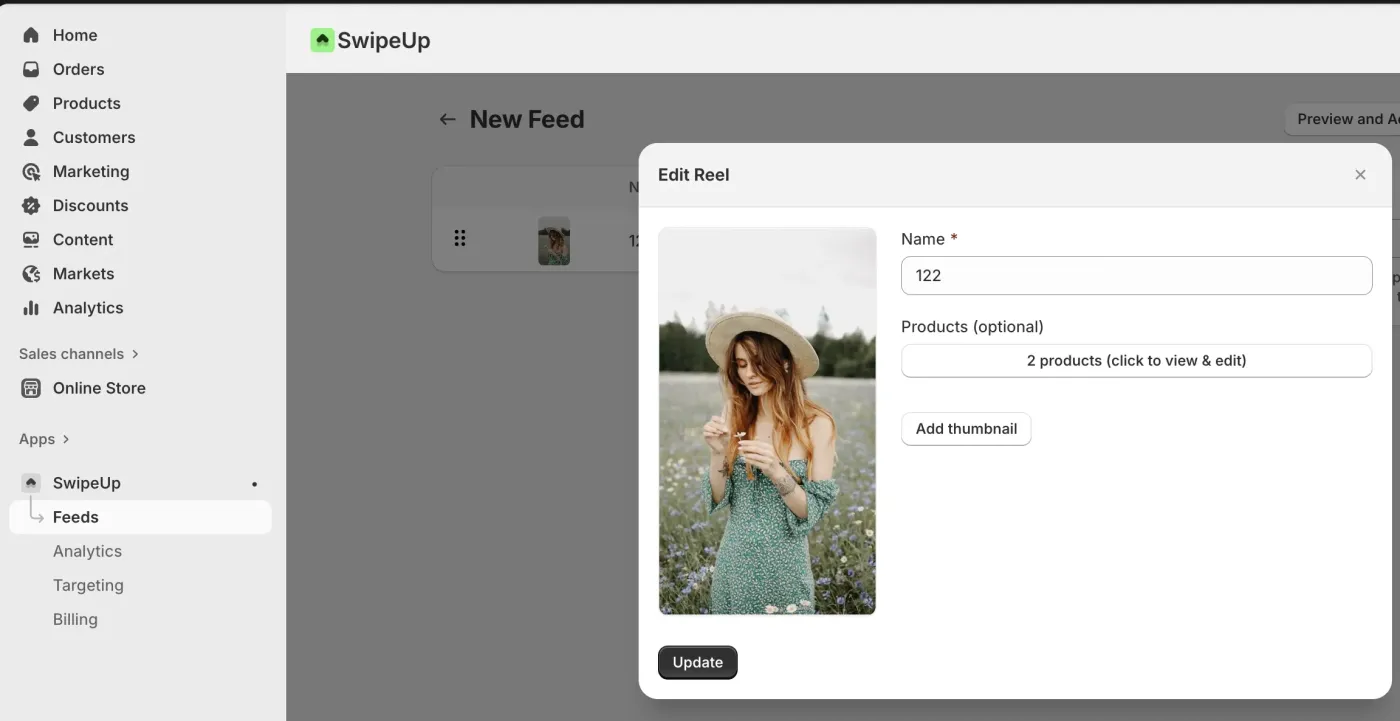
Step 3: Add Products from Your Catalog
Click Add Product and browse or search your Shopify product catalog. Select all the products you want to tag to this video. You can add multiple products in a single session.
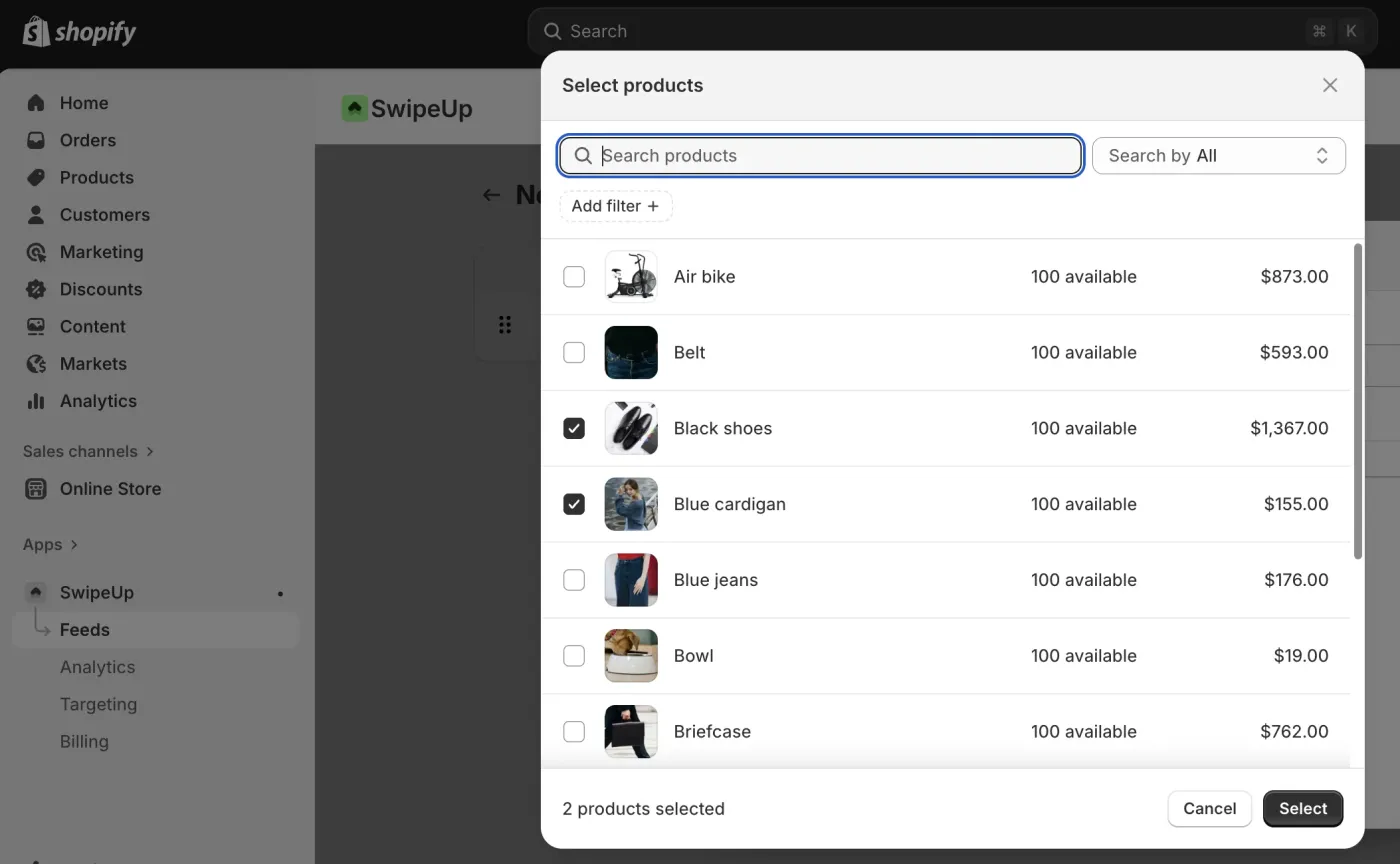
Step 4: Confirm and Save
Review the tagged products to make sure the correct items are linked. Click Save to confirm your changes. All tagged products will now appear in the product panel when customers watch the video.